TradingView added an AI Screener to its Stock Screener in August 2026. It lets you type a screening idea in plain English and it builds the filters, columns, and sort order for you, instead of you clicking through the filter panel field by field.
One thing to know right away: it’s a paid-plan feature. The AI icon that triggers it, in the top-left of the filter panel, only shows up on Essential, Plus, Premium, and Ultimate. Free accounts get the regular Stock Screener without it.
If you’re on free and this sounds useful, every paid plan comes with a trial, 30 days on Essential, Plus, and Premium, 14 days on Ultimate. Open the Stock Screener once your plan is active, check for the AI icon, and run a few prompts against your own watchlist before deciding whether to keep it.
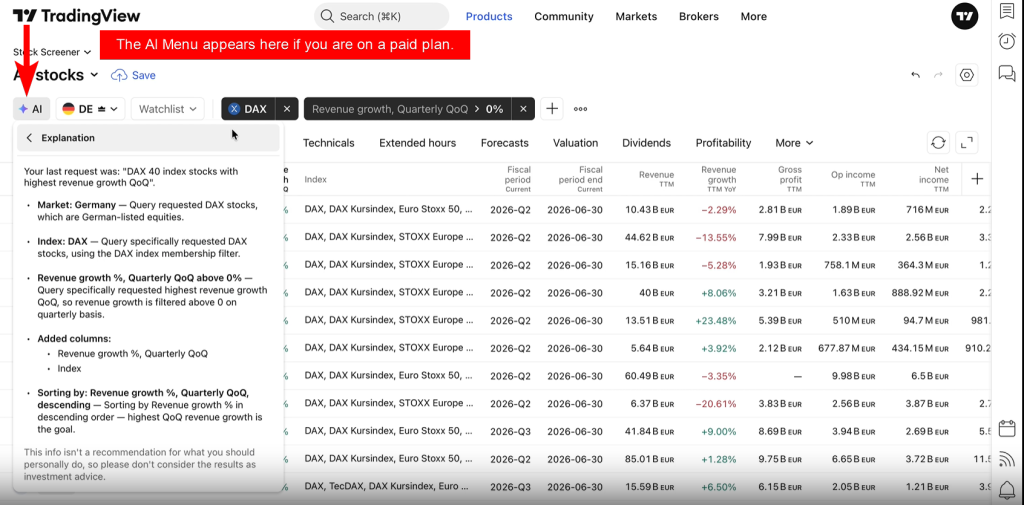
If you’re already paying, open the Stock Screener, click the AI icon or press Shift + A, and describe what you want.


How it works
Type your request and it maps that onto the Screener’s existing filters. Something like “dividend blue chips to hold for decades” or “S&P 500 stocks near 52-week lows with positive free cash flow” turns into a working screen automatically.
It also sets up the results table. The columns match what you asked for, and results get sorted by whatever metric is most relevant. Ask for stocks with dividend yield above 8% and the highest payers show up first without you touching the sort settings. If you happened to be looking at the Screener in a different view, it switches you back to the table so you can actually read the results.
It tells you why it picked what it picked
Click the AI icon again after running a request and there’s an Explanation option. It shows the reasoning behind each filter, TradingView’s own example is a note explaining that a certain exchange was selected because it’s the country’s main exchange, plus how the results are sorted and what columns got added.
It’s also reasonably forgiving with typos. Type “golden gross” instead of “golden cross” and it still figures out what you meant, applies the right filter, and tells you it made the correction. If it genuinely can’t map your request to anything, it asks you to rephrase, and usually naming a specific market, metric, or condition fixes that.
Templates if you’re not sure what to ask
There are pre-made request templates built in, things like “stocks with golden cross pattern today” or “small caps that just reported earnings.” You can browse these and use them as-is or as a starting point. They don’t count against your monthly request balance, so it’s a free way to see how the tool behaves before you use up any of your allotment on your own prompts.
What’s still rough about it
It’s a public beta, and TradingView says so plainly. A few things to know going in:
- It only works in the Stock Screener right now. Other screener types and more asset classes are supposedly coming but aren’t there yet.
- No mobile support.
- Running a new AI request wipes out any filters you’d set manually before, though it keeps your selected market unless you tell it otherwise.
- Being in beta means request limits could change, and the feature itself could get adjusted or pulled while they keep building it.
And the usual caveat applies: whatever the screener spits out is a starting point for your own research, not a recommendation.
Disclosure: Links to TradingView on this page are affiliate links. If you sign up for a paid TradingView plan through these links, Stocks On Fire may earn a commission at no extra cost to you.