Most traders and investors use TradingView for charts and price alerts. Fewer know that TradingView also has a dedicated news alerting system that can notify you the moment a news article matching your exact criteria gets published. No more refreshing your feed or finding out about an earnings report after the stock has already moved.
Here is how it works and how to set it up.
What Are TradingView News Alerts
TradingView has a feature called News Flow, which is essentially a customizable news feed that you can filter by specific tickers, watchlists, topics, and news providers. News alerts sit on top of this. Once you have a News Flow filter set up the way you want it, you can switch on an alert for that flow and TradingView will push a notification to you the moment a matching article is published.
The practical result is that you get notified about news that is actually relevant to what you’re trading, not a generic market news feed. If you’re tracking ten biotech stocks and you only want to hear about FDA-related news, you can set it up exactly that way.
Where to Find News Flow
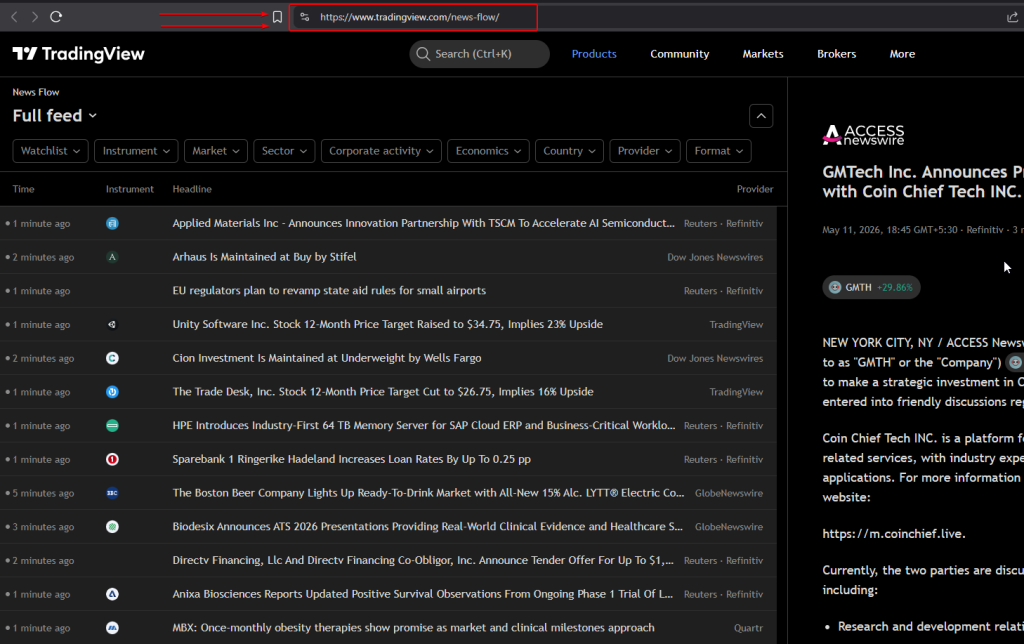
Log into TradingView and look for “News Flow” in the left sidebar or navigate directly to tradingview.com/news-flow. This is separate from the news ticker you might see on individual charts. News Flow is a standalone page where you filter and manage your news streams.


Setting Up Your First News Alert
The process has two parts: building the filter and then switching on the alert.
Building the filter: On the News Flow page, you’ll see filter options along the top of the feed. You can filter by specific ticker symbols (type in AAPL, TSLA, or whichever stocks you follow), by watchlists you’ve already created on TradingView, by topic categories like earnings, dividends, analyst ratings, or macroeconomic events, and by news provider. Once your filters are set up the way you want, save the flow as a template by clicking the save option in the header. Give it a name you’ll recognize later.
Switching on the alert: With your saved flow open, look for the “News alert” toggle in the page header menu. Flip it on. You can also enable it by clicking the alarm clock icon that appears in the “Recently used” section or in the “Open flow” dialog. Once enabled, the flow will show an alert icon to confirm it’s active.
That’s the setup done. From this point, whenever a news article matching your filter gets published, you’ll receive a notification through TradingView’s standard notification channels, which includes in-app, desktop popup, and email depending on your notification settings.
How Many News Alerts Can You Have
This is where the free vs paid plan difference comes in. Free users on TradingView can keep one news alert active at a time. If you want to track multiple separate news flows simultaneously, that requires a paid plan, which allows up to 10 active news alerts running at the same time.
For most casual users, one alert is a reasonable start. But if you’re actively trading multiple sectors, running separate alerts for each, say one for your tech watchlist, one for macro news, and one for a specific ticker you’re watching closely, you’ll run into the limit quickly. You can check what’s included in each plan on the TradingView pricing page.
Getting the Most Out of News Alerts
The real value of the system is in how specifically you can filter. A broad alert set to “all news” for a large watchlist will generate too many notifications and you’ll start ignoring them. Narrow filters that match your actual trading focus are more useful.
A few setups that work well in practice:
A watchlist alert covering your active positions, filtered to corporate actions like earnings, analyst upgrades/downgrades, and regulatory news. This keeps you informed about stocks you already own without noise from the broader market.
A separate alert for a specific high-conviction ticker you’re watching for an entry. Filter it tightly to that symbol and you’ll know immediately when something material gets published.
A macro alert filtered to topics like central bank decisions, inflation data, and economic reports, sourced from the specific providers you trust. This gives you a clean feed of market-moving macro events without mixing in individual stock stories.
The combination of multiple focused alerts is the setup that paid plan holders get the most out of, since you can keep all of these running simultaneously without needing to swap filters manually.
Notification Delivery
News alerts use TradingView’s existing notification system. To make sure you’re actually receiving them, check your notification preferences in your TradingView account settings. For real-time usefulness, the mobile app notification (available on iOS and Android) is the most practical since it reaches you immediately regardless of whether you have a browser tab open. Email notifications work as a backup but will naturally arrive with some delay depending on your email client.
One More Thing Worth Knowing
TradingView also recently added AI-powered summaries to corporate news. For regulatory filings and company announcements, the platform generates a short summary of the key facts so you can assess whether something is material without reading the full document first. This pairs well with news alerts since you get the notification and can quickly scan a summary before deciding whether to act.
The combination of filtered alerts and summarized content is genuinely useful for anyone who wants to stay informed on their positions without spending all day in a news feed.
If you’re not yet using TradingView or you’re on a free account and finding the single alert limit restrictive, it’s worth looking at their paid plans. The news alerting capability alone is useful enough to justify it for active traders.