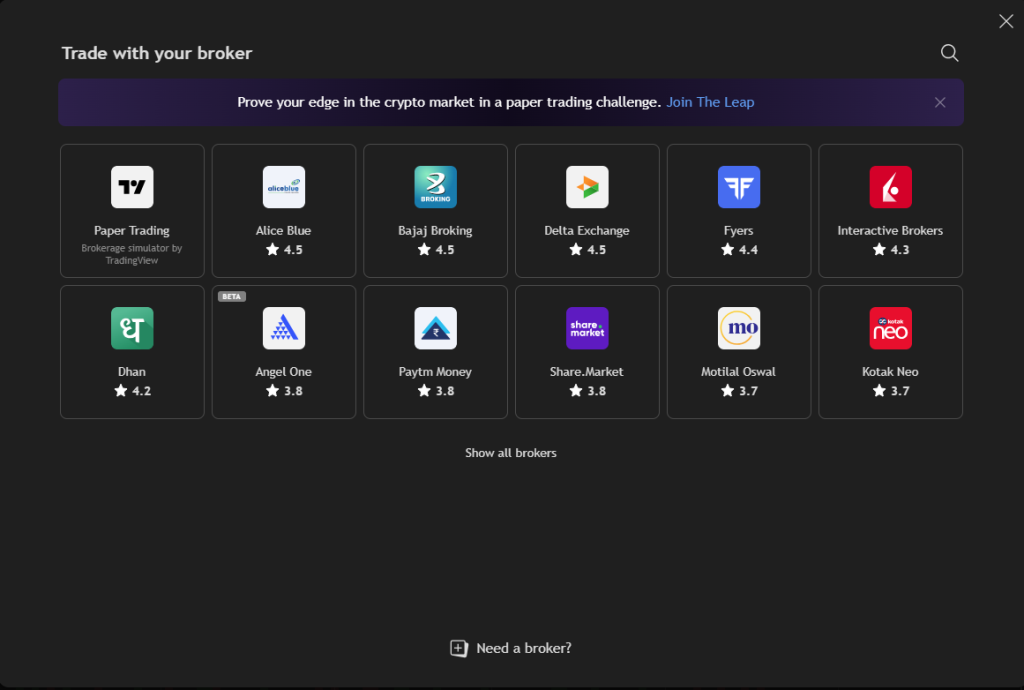


If you have a Kotak Neo account and you’ve been using TradingView for your chart analysis, you no longer need to switch back and forth between the two platforms to place orders. Kotak Neo has officially joined TradingView as a broker partner, which means you can connect your existing account and execute trades directly from the TradingView chart interface.
This is not a new broker you need to sign up with. It’s an integration for people who are already Kotak Neo customers and already use TradingView for research.
What the Integration Actually Lets You Do
Once your Kotak Neo account is linked to TradingView, you can place stock, futures, and options orders from inside the TradingView chart screen. The markets covered are NSE, BSE, MCX, and CDE, so equity delivery and intraday trades, index and stock F&O, and commodities are all within scope.
The trading interface appears within TradingView’s broker panel. You’re working with your real Kotak Neo account, your real margin, and your real positions, but the order entry happens from the same screen where you’re reading your charts. For traders who already do most of their pre-trade analysis on TradingView, this removes a step that most people would admit is slightly annoying: finishing your analysis, then opening a separate app to act on it.
Brokerage and Research
The brokerage structure for trading through TradingView remains the same as what Kotak Neo charges on their own platform. You can check the current pricing directly on the Kotak Neo pricing page before you start trading.
Kotak Neo also provides proprietary research through their platform, including short-term stock calls, intraday calls, derivative research, and a weekly stock picks report. As a Kotak Neo customer trading through TradingView, that research access stays on the Kotak Neo side, while TradingView handles everything on the charting and order entry side.
How to Connect Your Account
The process to link your Kotak Neo account to TradingView is straightforward. Open a chart on TradingView and click the “Trade” button that appears at the top of the chart toolbar. From the list of available brokers, select Kotak Neo and sign in using your existing Kotak Neo credentials.
Once connected, your account details, available margin, and open positions will appear in the broker panel on TradingView. From that point, you can place orders directly on any supported instrument by right-clicking on the chart or using the buy/sell buttons in the broker panel.
You don’t need to open a new account or go through any fresh KYC process for this. The integration works with your current Kotak Neo login.
Why This Matters for Chart-First Traders
A fairly common workflow for active traders in India is to do all technical analysis in TradingView (because the charting is genuinely good), then switch to the broker app to actually place the order. The two-platform workflow works, but it introduces friction. By the time you’ve switched apps, logged in, searched for the symbol, and placed the order, the price has occasionally moved past your intended entry.
The Kotak Neo integration solves this at the source. Your analysis and your order entry happen in the same window. For intraday traders especially, where entries at specific levels matter, reducing the time between “I see the setup” and “order placed” has a practical value.
It also consolidates your workspace. If you’re already using TradingView for charts, screeners, and watchlists, having your order blotter and position tracker in the same interface keeps things organized.
Who This Is For
This is specifically useful for existing Kotak Neo account holders who are active TradingView users. If you’re already comfortable with TradingView’s charts and you’re currently exiting TradingView to place orders in Kotak Neo’s own app, this integration is worth setting up. The connection takes a few minutes and the workflow improvement is immediate.
If you’re not yet a TradingView paid subscriber, it’s worth knowing that the broker integration feature works on the free plan as well for basic order placement. Paid plans on TradingView add features like more indicators, faster data, and expanded Portfolios limits, but the core trade-from-chart functionality is available without a paid subscription. You can check TradingView’s plan comparison on their pricing page if you want to see what the paid tiers include.
Setting It Up
To summarize the steps without overcomplicating it:
Open TradingView and go to any chart. Click “Trade” in the top toolbar. Select Kotak Neo from the broker list. Sign in with your Kotak Neo credentials. That’s it. Your account is now connected and you can start placing orders from the chart.
The broker panel will appear on the right side of your chart screen. It shows your available funds, open positions, and pending orders. You can size your position, set your stop and target levels on the chart itself, and send the order directly from there.
For anyone who’s been meaning to tighten up their trading workflow, this is a fairly low-effort upgrade if you’re already a Kotak Neo customer.
Disclosure: Links to TradingView on this page are affiliate links. If you sign up for a paid TradingView plan through these links, Stocks On Fire may earn a commission at no extra cost to you.